Mastering Presets in Print-Tool 2.4.0
Now that Roy Harrington has worked out how to bring a lot of sanity back to the processes of both creating new printing presets and using presets, Print-Tool can, for the first time, since the advent of macOS Ventura, be used reliably, for both aspects of using the handy Apple feature of user-saved printing presets. https://www.quadtonerip.com/html/QTRprinttool.html
And thanks to Tracy Valleau for digging up the original observation of the hollowed-out (incorrectly saved) presets while looking at this, year before last, which, in turn led to the pointers given below. Recently, he and I have been helping Roy figure out how to get Print-Tool around this preset bug and some other issues. Print-Tool is looking really good now. After more than three and a half years, Apple is woefully behind on fixing this preset bug, hopefully not for much longer. When they do, Print-Tool 2.4.0 is also expected to keep working correctly without requiring further adjustment.
Presets are distinct from the “Default Settings” which are not user-created but which form a similar, system-supplied group of many dozens of settings, derived from settings data supplied by your installed printer driver, and thus from the manufacturer of the printer.
Whenever the bug that currently remains in macOS Ventura through Tahoe inadvertently causes a saved “Print Job”, i.e. complete, preset to be saved as a super-incomplete, i.e. partial “Custom” preset instead, a potentially terrible problem is queued up, because when you go to use that preset, roughly 90-plus percent of the required settings are missing. So the OS automatically loads in either only the missing settings or more often loads in all of the settings from the complete set of Default Settings. Those settings are stored in CUPS (the Common UNIX Printing System) that handles a lot of printing services for macOS. Those settings can be accessed via browser and even edited, but in my own experimentation there appeared to be no benefit to either preset performance or color management results from making any type of edits to those settings, despite several experiments done along those lines.
This short essay is just to tip you off to a great way (or two) to let you instantly see for yourself if a preset is actually a good one or a broken one — for sure, by letting you actually see inside of the preset’s data, saved as a subset of one of the two .plist files, stored here, where the tilde (til’duh) means this is the Library folder in your Home folder, not the root level Library folder that sits beside the main System folder.
~/Library/Preferences/com.apple.print.custompresets.plist
or
~/Library/Preferences/com.apple.print.custompresets.forprinter.[name of your printer].plist
That first one is where presets are saved when they are saved for All Printers. I now prefer that option, in case we might replace (and re-name) our “printer” (not the actual hardware, rather just the install shown in the Printers & Scanners system setting), then we get to keep our presets. On the other hand if you use lots of different printers, then each list of presets in the printing UI will be a lot shorter when it’s showing you only one particular printer’s presets, making it potentially easier to deal with. Both options seem to work fine now.
Until the upgrade from Print-Tool to version 2.4.0 from version 2.3.4, it had become necessary to only save new presets in Preview app, because they always save correctly there. Most other applications from which one might print via macOS Ventura or later are not capable of matching Preview in this sense. Preview also works well with respect to using such presets, but Preview lacks some important features for printing, so it’s certainly not the greatest overall candidate as a printing-capable tool. Lo and behold, ColorSync Utility is significantly more full-featured, albeit with a rather kludgy interface that makes it unnecessarily difficult to be certain of what it’s doing and therefor exactly how we need to use it.
And for what it’s worth, the latest version of Photoshop, v27.3.0 as of today, is also still hobbled with broken presets and other problems as well, though it usually works fine for the not-preconverted file printing option via macOS (it’s not working fine on one of my two Sonoma M1 Macs, for color management reasons, but that’s another story). By pre-converted I mean the file has been converted from your RGB working space to your printer profile before you hit command-P in Photoshop to begin the actual printing step, and the corresponding series of steps in other applications.
So, there are two tidy ways to easily read the relevant contents of either of those two .plist files. One is to buy a $7.99 program for macOS from the App Store called PLIST Editor and the other is to download from Apple and install the latest version of Xcode that’s compatible with your version of macOS (link below, free account setup required).
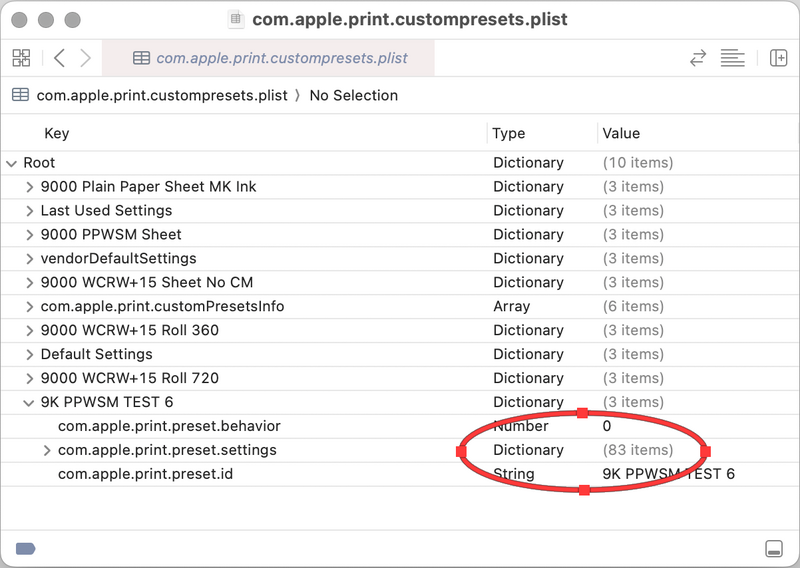
Xcode is a huge program that will take up over 12 GB of space on your Mac, but either program can easily be set in a Finder Get Info window as the default application for opening .plist files, so that you just double-click the .plist file (if it’s Xcode, once to launch Xcode then once again to open the file) and voila: you get to instantly see the critical fact of any of the printing presets on your system. Very handy. Two versions of what that should look like are shown in the second and third figures below. Note that having opened the .plist file in Xcode, you first look down the list of items inside the .plist file for the one named the same as your preset. Then you hit the expansion arrow (>) to see inside of its first layer, then read this line:
“com.apple.print.preset.settings”
That line also contains the word “dictionary” and a number “(XX items)”. If that number is in the range of 80-something to 90-something, your preset is a good one, i.e. a complete “print job” one, at least in the case of an EPSON wide format printer. If the number is something like 6 or 10 or perhaps even 30, it’s a bad one. But double-check with your printer that this appears to make sense. I don’t know how many settings are stored in a full preset for Canon, HP or other printers. Some kinds of printers likely have greatly abbreviated full sets of settings but this is only a matter for printers for which you’ve actually saved one or more presets. Look for any preset you suspect may be bad and compare the number with one you suspect is good. Once you know the approximate number of items to show up in that one line of a saved preset for your printer, you should be all set to verify the integrity of your presets super easily.
Any preset saved as a “print job” preset that meets that rough numerical requirement is one that will work in Print-Tool 2.4.0 when you select it to cause all your preferred settings to be loaded in as intended. Once you’ve accomplished that in the Print Settings inner UI (again the UI that Apple builds, customizing it for your printer driver’s inputs), if you hit Print, those will be the settings that are actually used to make the print.
This way of scoping out preset integrity is more reliable than just snooping around in the printing UI.
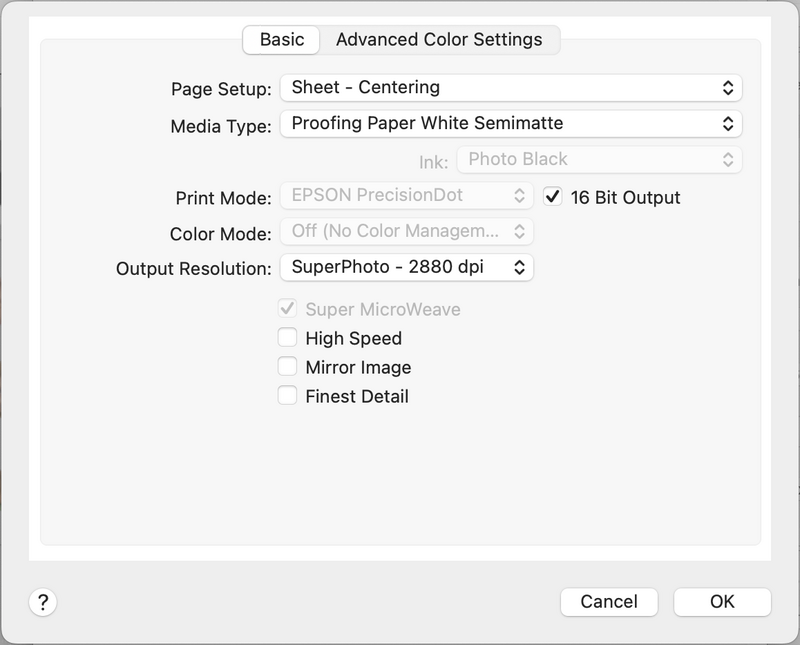
Here is the Printer Options > Printer Settings dialogue for an EPSON SureColor P9000 Standard Edition in my preferred configuration for running certain color management debugging tests of late. When my printer’s built-in Default Settings are loaded, either intentionally or because a bad preset is used or because the “Cancel” bug occurs, just about everything here changes, so it’s obvious when I look back into the dialog after just having left it by hitting Cancel or OK.
Note that hitting Cancel has very often, of late, to varying degree in different printing applications, been triggering a reversion to the Default Settings — another bug. Lately, in Print-Tool, however, even that nasty “Cancel” bug appears to have been fixed, but beware of it nevertheless. Go back into dialogues just to check that the settings you see are the same as they were when you closed the dialogue. Hitting OK in those UI locations where the choice is Cancel or OK is always safe, assuming you want to accept any changes you made in one of these inner dialogs. Hitting Cancel might nuke your settings.
And here’s what one of my .plist files looks like on the inside just now, from a period of experimentation with preset debugging, as seen in Xcode 16.0. My preset was named “9K PPWSM TEST 6” and the critical info is “83 items”.
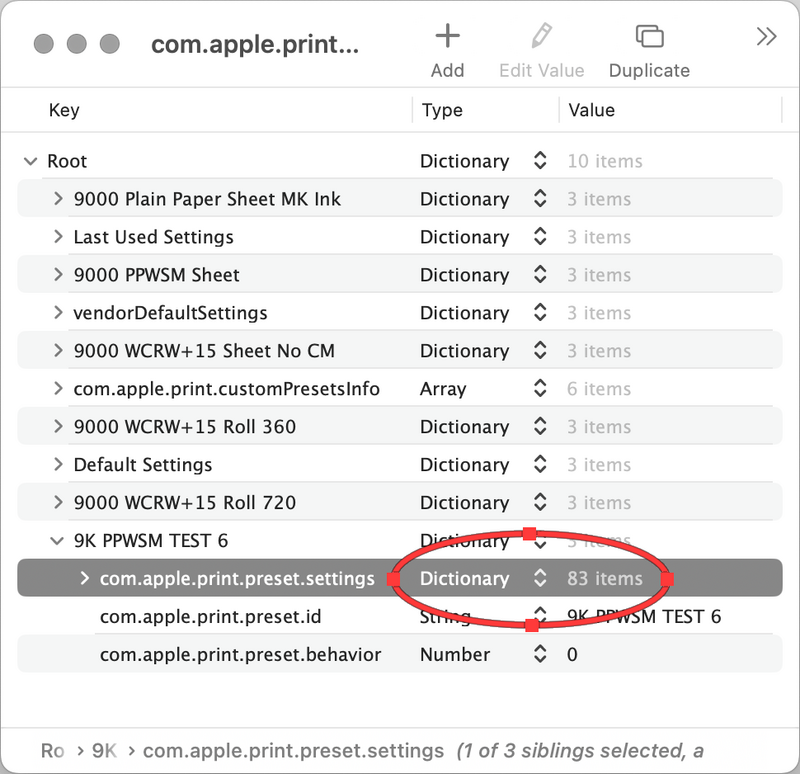
If you flip the expansion arrow (>) in that same line, the entire list of 83 items (and then some) opens up.
Go here to download Xcode if you prefer, versus using PLIST Editor, which can provide a very similar view of the inside of your .plist files:
https://developer.apple.com/download/
The version of Xcode found in the App Store is only for the most current versions of the OS. I’m using Sonoma now (not one of those), so I had to download my version from the developer site.
Here’s one way the list can look in PLIST Editor, i.e. pretty much the same:
I agree with Roy’s sense that it’s best to stick to using “Print Job” presets. As to whether keeping “Reset Presets Menu to Default Settings After Printing” is still necessary, it might be, but I think the latest Print-Tool versions of the last couple of weeks have been working right even without doing that, not sure — try it and see. At one point it was necessary to re-launch Print-Tool prior to saving any new preset, but that issue has been fixed too.
Happy Presetting
PS: On the matter of color management going wrong in macOS printing, I will have a lot more to say in another article, on account of two important bugs that cause incorrect results by leading to superfluous and incorrect profile-to-profile conversions being applied to data which has already been correctly prepared for printing.
These bugs occur in certain pathways, as I’m calling them, ways to get correct color management while printing. For example, across just four printing applications, including Print-Tool, ColorSync Utility, Preview, and Photoshop, I count 23 distinct ways to print which should all result in correct color management. Many of those ways do not, but even worse, the number that do not is not always the same from Mac to Mac, even Macs of the same (e.g. M1) vintage, the same OS and using the exact same software for printing. So the color management picture is complex and especially difficult to diagnose.
Most users will find that the pathways that rely on Print-Tool’s options of either “Print Tool Managed” or “No Color Adjustment” work correctly. One of the four pathways that rely on Print-Tool’s option of “Print Driver Managed” does not work correctly, and that exact same path in each of the other three printing applications also fails to work correctly, making it clear that this is almost certainly Apple’s fault. Neither Print-Tool nor Epson’s driver likely have anything to do with this failure but investigations are underway to attempt to clarify the situation so these bugs can get fixed.